Multi-factor authentication (MFA) means using at least 2 factors to authenticate your identity, consisting of:
- Your Password
- An Additional Verification method.
MFA adds an extra layer of security to protect your online accounts against cyber
criminals, and helps to protect all RSCCD students, faculty, and employees from hacking,
phishing, unauthorized intrusions and data leaks.
If you're just getting started, please refer to our Tips to get started with MFA.
If you need step-by-step instructions, please refer to our setup guides here:
No. Registering for MFA does not give RSCCD access to your device.
As an alternative to using a mobile phone, you can use your office phone to verify via phone call, or request a Hardware Token.
If you need help determining a suitable MFA method, please contact the ITS Help Desk.
If you're using the Outlook mobile app, Outlook desktop app, or Office365 apps in
general while off-campus, you''ll be required to authenticate once every 90 days.
If you're using Outlook Web Access at https://outlook.office.com or the www.office.com website while off-campus, you'll be required to authenticate each time you sign-in.
Below is the approved list of MFA methods we support:
- Microsoft Authenticator (Recommended)
- Google Authenticator
- Hardware Token
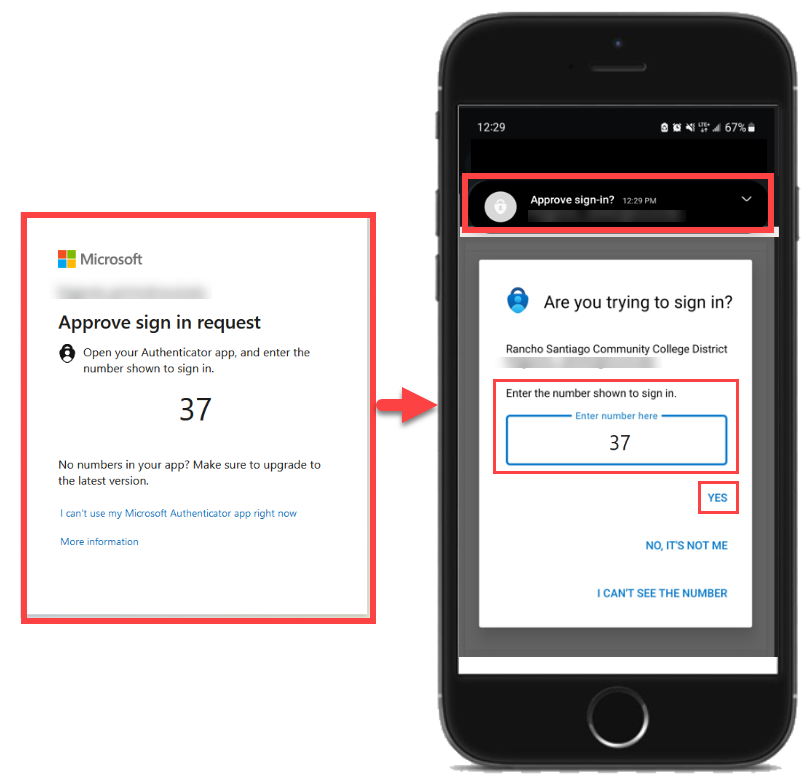
Microsoft Authenticator app allows for Push Notifications to be sent to your phone to verify sign-in requests. You'll be prompted to enter
a two-digit code in the app to verify your login.
If you've decided to use Microsoft Authenticator, we would strongly recommend that
you install the Microsoft Authenticator app on your phone first.
Download the Microsoft Authenticator App
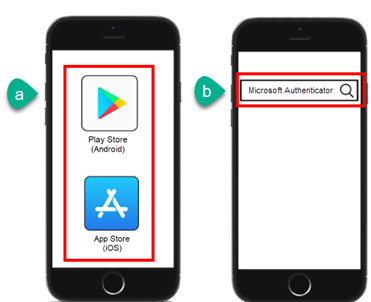
- On your phone, open the App Store or Play Store.
- Search for Microsoft Authenticator
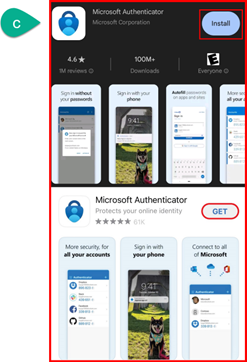
- Install or Get the Microsoft Authenticator app.
NOTE: Check that the app is from Microsoft Corporation. The app is free.
Once you have the app installed and notifications enabled, you can initiate voluntary
enrollment for Multi-Factor Authentication (MFA) at this link, then follow the prompts
for setup: https://aka.ms/mfasetup
For step-by-step instructions with instructions, please refer to the Microsoft Authenticator section of our guides below:
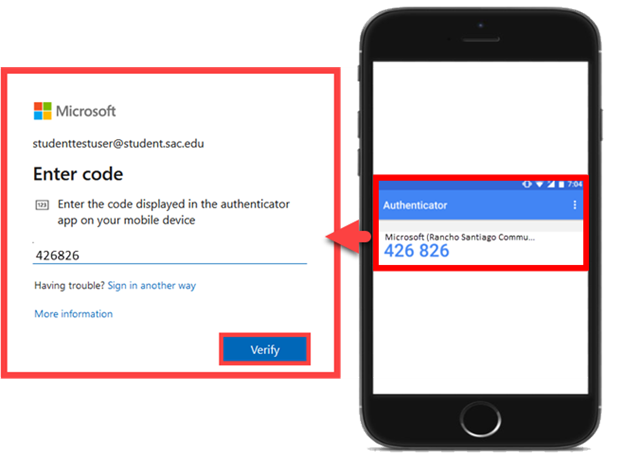
Google Authenticator app is an alternative to Microsoft Authenticator. It generates a 6-digit code used
to verify your login instead of a push notification.
If you've decided to use Google Authenticator, we would strongly recommend installing the app on your mobile device now from the App Store or Play Store.
Once you have the app installed, you can initiate voluntary enrollment for Multi-Factor
Authentication (MFA) at this link: https://aka.ms/mfasetup
When prompted on the "Keep your account secure" page:
- Select "I want to use a different authenticator app"
- Select "Next"
- When presented with a QR code, open the Google Authenticator app and scan the QR code.
For step-by-step instructions, please refer to our guides below:
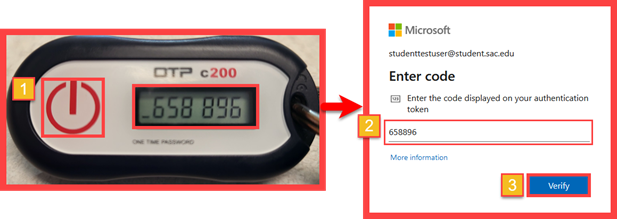
Hardware token uses a One-Time Password (OTP) generated by a hardware token device, provided by ITS Help Desk, consisting of a 6-digit code used to verify your login.
If you've decided on using a Hardware Token as your MFA method, please contact ITS Help Desk so we can arrange to have one allocated and distributed for you.
Please allow a few business days for us to provide you a hardware token, as we need
to configure the device first, and then have an ITS technician coordinate a time and
place for you to pick up the hardware token device.
Enable Push Notifications:
- Make sure Notifications are enabled for the Microsoft Authenticator app.
- From the Microsoft Authenticator app > select Settings > Notification settings.
- Or, from your phone's main menu, go to Settings > Notifications.
- Check for Notifications manually.
- Open the Microsoft Authenticator app > select the three dots > select "Check for notifications."
Turn off Battery Optimization:
- Turn off battery optimization.
- Open the Microsoft Authenticator app > select the three dots > select "Turn off battery
optimization."
- Sometimes, battery optimization settings on your phone can disable push notifications,
including those from Microsoft Authenticator.
Allow Background Data Usage:
- Allow background data usage
- Open the Microsoft Authenticator app > select the three dots > select "Allow background
data usage."
- Having the background data usage enabled will ensure you get notifications on time
from the Microsoft Authenticator app.
Use the Time-Based One-Time Passcode (TOTP):
If you're having trouble with Notifications, or don't have an internet connection,
you can also use a Time-Based One Time Passcode (TOTP).
- When signing in and being prompted to "Verify your identity," select the option "I
can't use my Microsoft Authenticator app right now."
- Select "Use a verification code."
- To get the verification code:
- Open your Microsoft Authenticator app > Select the entry for Rancho Santiago > look
under the "One-time password code". This code refreshes every 30 seconds.
Set up an alternate MFA method:
You can manage your sign-in methods from the Microsoft Authenticator app itself by
doing the following:
- Open your Microsoft Authenticator app > Select the entry for Rancho Santiago > Select
Update Security info.
This will take you to the "My sign-ins" page for your account, where you can add,
remove, or edit an existing authentication method.
If you lose or replace your device that has Microsoft Authenticator installed, you'll
need to have a backup MFA method enabled to access your account, or contact the ITS Help Desk so we can remove the registration from the old
device so you can register the new device.
Set up backup MFA method:
See the section on how Managing MFA Methods.
Contact the ITS Help Desk for assistance:
Contact the ITS Help Desk for help if you can't manage your authentication methods. We can help you re-enroll
into MFA with your new device.
Managing MFA Methods
- From a web browser: Go to https://aka.ms/mfasetup
- From the Microsoft Authenticator app: Open your Microsoft Authenticator app > Select the entry for Rancho Santiago > Select Update Security
info.
Both methods will take you to the "My Sign-ins / Security Info" page for your account, where you can add, remove, or edit an existing authentication method. This includes
removing, editing, or adding new MFA methods, such as in the event of replacing your
mobile device or phone number.
On the Security Info page, we strongly suggest setting up a secondary Authentication
method using the “Add sign-in” button.
Please note that you'll be required to authenticate using MFA to access https://aka.ms/mfasetup. If you only had one MFA method available, and it's no longer working, you won't
be able to log in here.
If you're unable to manage your authentication methods, please contact the ITS Help Desk for assistance with MFA. We can help you remove, edit, or add another MFA method
if you lose access to or replace your original device.
If you're using the Microsoft Authenticator app from a new phone, it may no longer work from the new phone. To fix this, please
apply the following steps.
Steps to remove/re-add Microsoft Authenticator as an MFA method when using a new device:
- Access the "My sign-ins" page to manage your MFA methods.
- From a web browser: Go to https://aka.ms/mfasetup
- From the Microsoft Authenticator app: Open your Microsoft Authenticator app > Select the entry for Rancho Santiago > Select Update Security
info.
- Remove the existing Microsoft Authenticator method listed there.
- Select Add > Authenticator app to go through the MFA enrollment process again with the Microsoft Authenticator app
on your new phone, as if you're setting it up for the first time.
If you're unable to manage your authentication methods, please contact the ITS Help Desk for assistance with MFA. We can help you remove, edit, or add another MFA method
if you lose access to or replace your original device.
What applications require MFA?
Faculty and staff are required to use MFA when accessing certain District resources while outside of
campus or the District network (e.g., working from home, while traveling, etc).
At this time, MFA is required for the following applications while working off campus:
- Canvas
- Microsoft Office365, which includes:
- Outlook Email (Exchange Online) at https://outlook.office.com
- Outlook app for mobile devices
- Microsoft Teams
- OneDrive
- OneNote
- Microsoft Office365 desktop apps (such as Word, Excel, PowerPoint, etc)
- The www.office.com website and any related Microsoft services that use this login.
At this time, Self-Service is not affected by MFA requirements. (If you are accessing the link to email from Self-Service, this points to Office365,
and would require you to use MFA).
Starting on July 17, 2023, when you're not on campus and try to use one of the applications mentioned above,
you'll be asked to set up an MFA (Multifactor Authentication) method. If you already
have an MFA method set up, you'll be asked to confirm your identity using your MFA
method.