Web Publishing Environment
Main, Side, and Full Width Content
To edit Main Content (main body of webpage), click the 'Main Content' button.
To edit Side Content (left of main content), click the 'Side Content' button.
To edit Full Width Content (below main and side content), click the 'Full Width Content' button.
Text Editing and Add-Ons

Use menu to edit text and add media. See the CMS Support Page for additional resources.
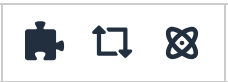
Add-Ons can be used to further edit the appearance of a page.
Snippets (left) format content in a user-friendly way, like accordions or columns.
Assets (middle) are reusable content that can be used across multiple pages, like contact cards.
Components (right) format content in a creative layout, like slideshows and banners.
Click the table icon.
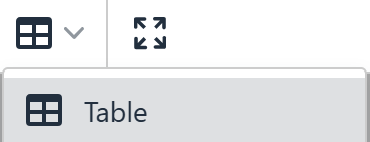
Table can be created with any number of rows/columns to fit information.
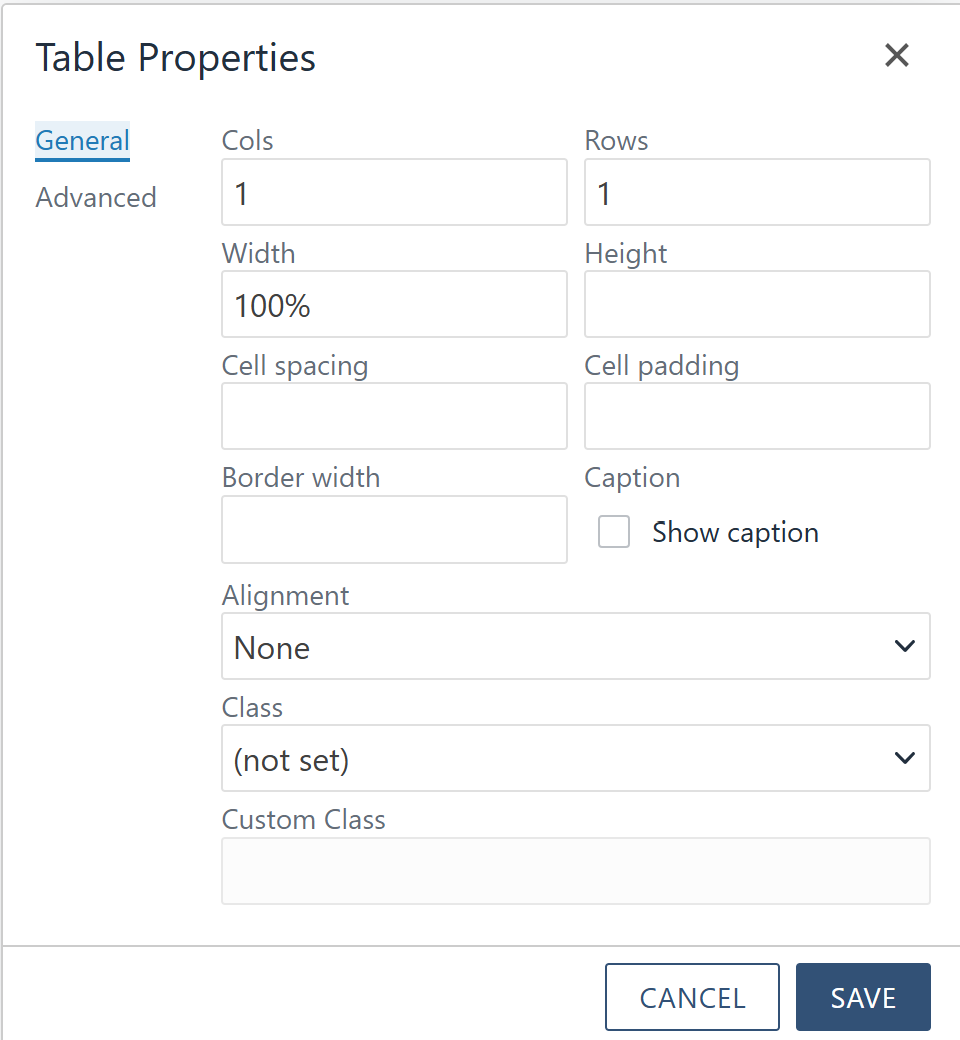
View CMS Support Page for additional resources.
Recycling Content
To remove content from CMS and the live website:
- Click on the three dots of the content to be removed
- Click File
- Click Recycle
Note: Content can be restored within 30 days of recycling.
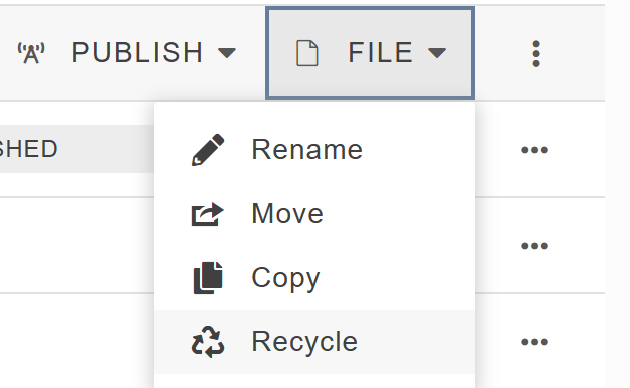
Visit Recycling Page for additional information.
Properties
To access properties of a webpage, click the 'Properties' button at the top of the page.

Properties can be viewed on the left side.
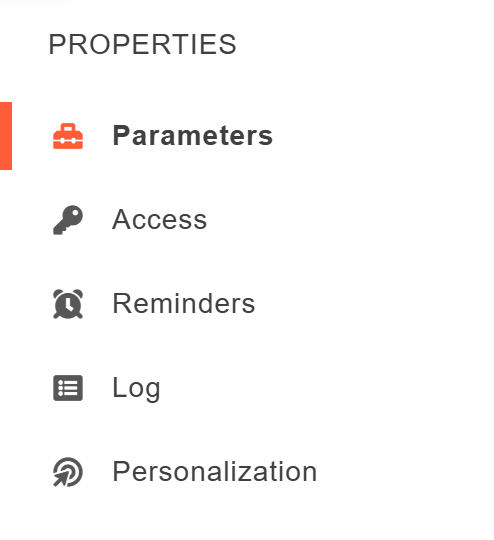
Visit Properties Page for additional resources.
Navigation
Navigation, or 'In This Section,' can be found on the left side above the side content. Pages within a folder can be displayed under navigation.
To change the pages shown and accessible by navigation, visit the nav page within the folder.
The order of pages listed and their names in 'In This Section' can be changed through the _nav.ounav page.
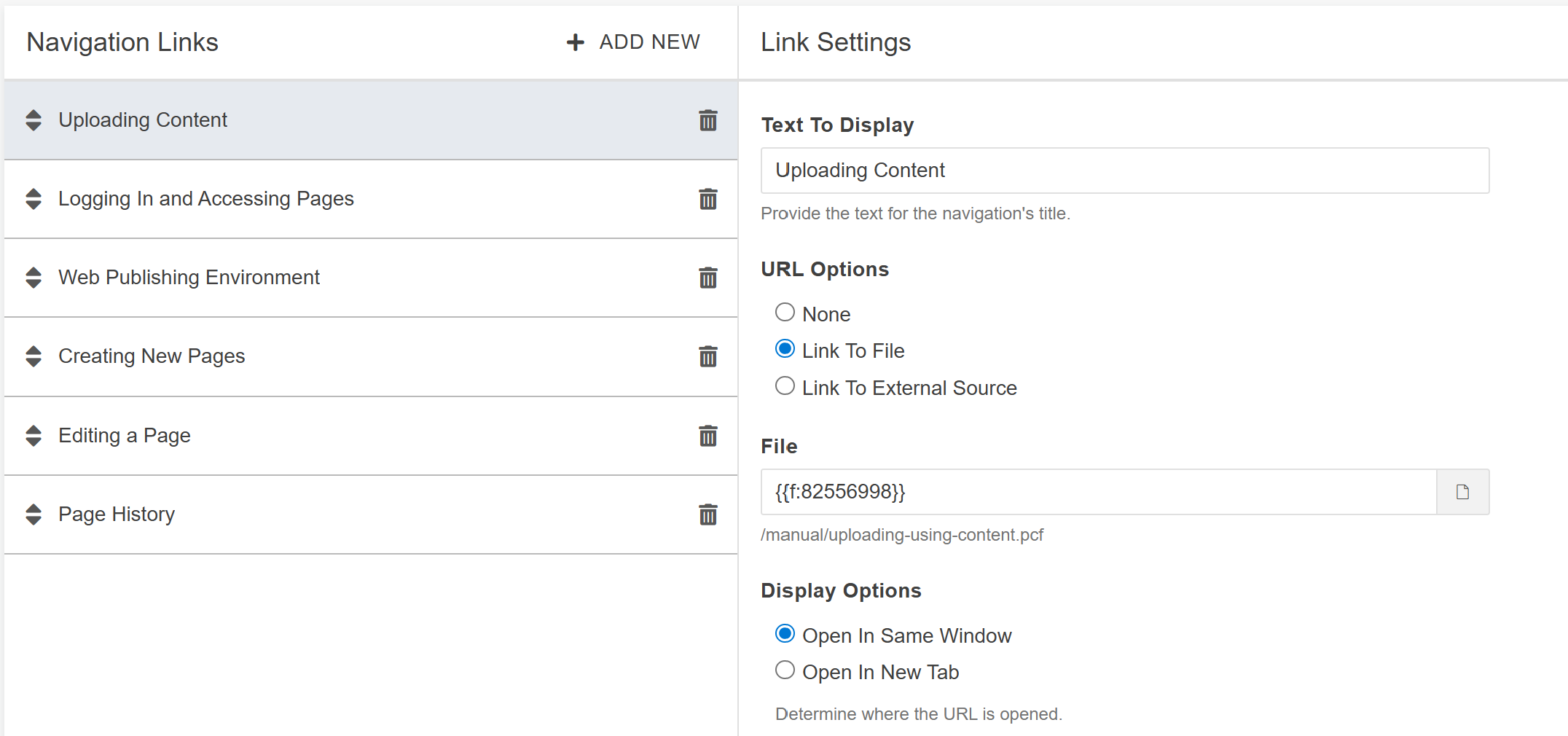
Visit Navigation Page for additional information.